


2018年已经过了一周,总结一下2017年在公司wiki上写的一篇关于css布局的知识,当时也借鉴了几个大神写的css布局知识,和自己在项目中遇到的坑。废话不多说。请看以下的干货。
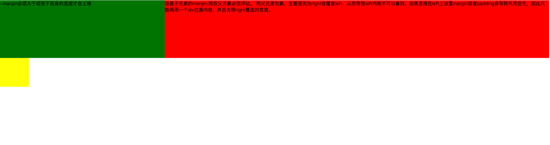
1、左边固定,右边自适应布局的两种实现方式
效果图如下:
大屏展示:
小屏展示:
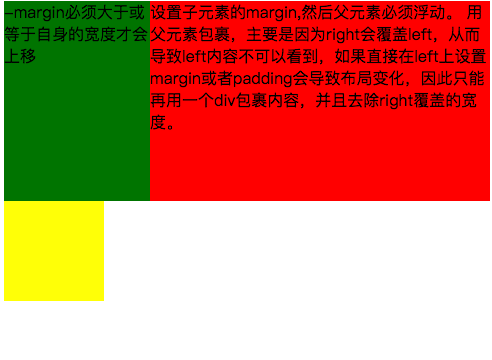
第一种实现方式通过负边距与浮动 实现左边固定,右边自适应的布局。 主要代码如下:
	.left{
		float: left;
		width: 100%;
		height: 200px;
		background-color: red;
	}
	.left-content{
		margin-left: 30%;
	}
	.right{
		float: left;
		width: 30%;
		margin-left: -100%;
		height: 200px;
		background-color: green;
	}
	.layout0{
		clear: both;
		width: 100px;
		height: 100px;
		background-color: yellow;
	}


				设置子元素的margin,然后父元素必须浮动。
				用父元素包裹,主要是因为right会覆盖left,从而导致left内容不可以看到,如果直接在left上设置margin或者padding会导致布局变化,因此只能再用一个div包裹内容,并且去除right覆盖的宽度。


		-margin必须大于或等于自身的宽度才会上移
实现过程中需要注意的是:
1.自适应的容器需要容器包裹住,否则容器内的内容会被覆盖。
2.right容器的负边距必须大于或等于自身的宽度才会上移。
3.如果right容器负边距等于自身的宽度它会靠右对齐,如果负边距等于-100%,则会靠左对齐。
第二种 通过浮动布局来实现左边固定,右边自适应的布局
主要的代码如下:
	.left{
		float: left;
		width: 200px;
		height: 200px;
		background-color: yellow;
	}
	.right{
		padding-left: 200px;
		height: 200px;
		background-color: red;
	}
	@media (min-width: 650px) and (max-width: 1000px){
		.left{
			width: 150px;
		}
		.right{
			margin-left: 150px;
		}
	}
	@media (max-width: 640px){
		.left{
			width: 100px;
		}
		.right{
			margin-left: 100px;
		}
	}


		左边固定宽度,右边自适应
实现过程中需要注意的是: 1. left需要脱离文档流,而right只需要正常显示就可以。
2.left只是覆盖在right上边,因此想要让right内容完整显示需要给right padding-left或者margin-left。
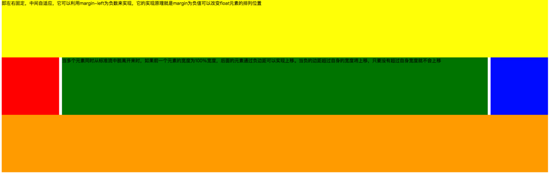
大屏展示:
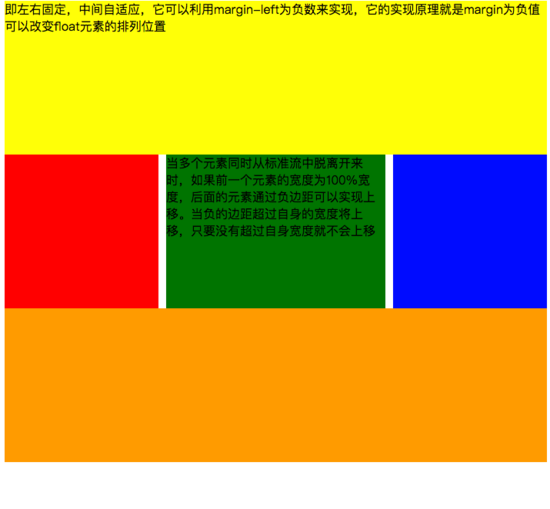
小屏展示:
主要代码如下:
	#head{
		height: 200px;
		background-color: yellow;
	}
	#body{
		width: 100%;
		float: left;
	}
	.main{
		background-color: green;
		min-height: 200px;
		margin: 0 210px;
	}
	.left{
		float: left;
		background-color: red;
		width: 200px;
		height: 200px;
		margin-left: -100%;
	}
	.right{
		float: right;
		background-color: blue;
		width: 200px;
		height: 200px;
		margin-left: -200px;
	}
	#footer{
		clear: both;
		height: 200px;
		background-color: orange;
	}


	即左右固定,中间自适应,它可以利用margin-left为负数来实现,它的实现原理就是margin为负值可以改变float元素的排列位置

		当多个元素同时从标准流中脱离开来时,如果前一个元素的宽度为100%宽度,后面的元素通过负边距可以实现上移。当负的边距超过自身的宽度将上移,只要没有超过自身宽度就不会上移
实现过程中需要注意:
1.中间自适应的div需要放在left和right容器前面并且内容div需要用父容器包裹
2.left和right容器向同一个方向浮动。
主要代码如下:
	#head{
		height: 200px;
		background-color: yellow;
	}
	#body{
		overflow: hidden;
	}
	.left{
		float: left;
		background-color: red;
		width: 200px;
		height: 200px;
	}
	.right{
		float: right;
		background-color: blue;
		width: 200px;
		height: 200px;
	}
	.main{
		background-color: green;
		height: 200px;
		margin: 0 210px;
	}
	#footer{
		clear: both;
		height: 200px;
		background-color: orange;
	}


	左右固定宽度并且向两边浮动,中间的div设置两边的margin


		该方案有一个缺陷,在小屏幕情况下回导致right被挤下去,main没有了
实现过程中需要注意:
1.该方式只需要注意中间自适应的div需要放在left和right容器的后面。
2.left和right容器向两边浮动。
主要代码如下:
	使用flex 实现“双飞翼布局”


	#main{
		display: flex;
		display: -webkit-flex;//谷歌浏览器加前缀
		flex-flow: row nowrap;
		justify-content: flex-start;
		align-items: center;
	}
	.left{
		flex: 0 0 auto;
		width:100px;
		height: 200px;
		background-color: red;
		word-wrap: break-word;
		overflow: hidden;
	}
	.main{
		flex: 1 1 auto;
		height: 200px;
		background-color: green;
	}
	.right{
		flex: 0 0 auto;
		width: 100px;
		height: 200px;
		background-color: yellow;
	}


		flex 语法我参照了阮一峰关于flex语法介绍 http://www.ruanyifeng.com/blog/2015/07/flex-grammar.html
如果未了解过flex布局请移至文末点击链接查看 阮一峰大神写的关于flex语法
3、定位布局
这边就不絮絮叨叨的讲一些基础的css定位知识了(ps:不会的请自行到w3c官网查阅),我主要来讲解一下工作中遇到的坑。以免其他人和我一样掉入坑中。
第一:使用多个fixed时,注意自己需要基于什么定位,因为如果父级有用transform属性时,可能会导致子元素的fixed基于父元素容器定位,而不是基于body定位。效果如下:
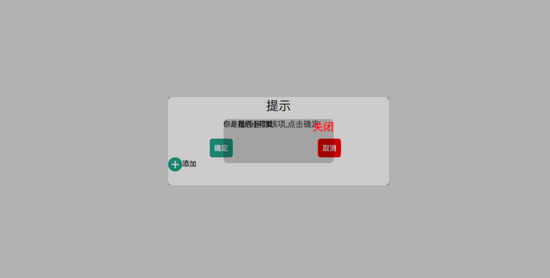
在上图中我可以发现中间黑色的小框是基于父级来定位,并且宽度也基于父容器的50%。详细的请看下面代码:
    关于position的定位的坑


    body{
 margin: 0;
 padding: 0;
    }
    i{
 font-style: normal;
 cursor: pointer;
    }
    #delete-button{
 position: absolute;
 left: 45%;
 top: 45%;
 text-align: center;
 vertical-align: middle;
 height: 50px;
 margin: auto;
 cursor: pointer;
    }
    #delete-button > i{
 display: inline-block;
 width: 32px;
 height: 32px;
 border-radius: 16px;
 background-color: orange;
 color: red;
 font-size: 32px;
 vertical-align: middle;
 line-height: 28px;
    }

    #layout{
 display: none;
 width: 100%;
 height: 100%;
    }


    #layout-box{
 position: fixed;
 width: 100%;
 height: 100%;
 background-color: rgba(0,0,0,0.3);
    }
    .modal-dialog{
 position: absolute;
 left: 50%;
 top: 50%;
 width: 500px;
 height: 200px;
 border-radius: 10px;
 transform: translate(-50%, -50%);
 -webkit-transform: translate(-50%, -50%);
 -moz-transform: translate(-50%, -50%);
 -o-transform: translate(-50%, -50%);
 background-color: #fff;
    }
    .dialog-title{
 text-align: center;
 color: #333;
 font-size: 28px;
 margin-bottom: 10px;
    }
    .dialog-content{
 text-align: center;
 color: #666;
 font-size: 18px;
    }
    .dialog-button{
 margin-top: 20px;
 width: 100%;
 color: #333;
    }
    .dialog-button >.button-box{
 display: inline-block;
 width: 48%;
 text-align: center;
    }
    .button-box span{
 display: inline-block;
 padding: 10px;
 color: #fff;
 border-radius: 6px;
 cursor: pointer;
    }
    #/confirm/i{
 background-color: #27ad9a;
    }
    #cancel{
 background-color: red;
    }

    #add-button > i{
 display: inline-block;
 width: 32px;
 height: 32px;
 border-radius: 16px;
 background-color: #27ad9a;
 color: #fff;
 font-size: 32px;
 vertical-align: middle;
 line-height: 28px;
 text-align: center;
    }
    #add-button{
 display: inline-block;
 cursor: pointer;
    }

    .layout2{
 display: none;
 position: fixed;
 width: 100%;
 height: 100%;
 left: 0;
 top: 0;
 background-color: rgba(0,0,0,0.2);
    }
    .modal-dialog2{
 position: fixed;
 left: 50%;
 top: 50%;
 width: 50%;
 height: 50%;
 border-radius: 10px;
 transform: translate(-50%, -50%);
 -webkit-transform: translate(-50%, -50%);
 -moz-transform: translate(-50%, -50%);
 -o-transform: translate(-50%, -50%);
 background-color: rgba(0,0,0,0.2);
    }
    .modal-dialog2 > span{
 display: block;
    }
    .modal-text{
 float: left;
    }
    #close{
 color: red;
 font-size: 24px;
 float: right;
 cursor: pointer;
    }


    -删除


  提示
  是否删除该项,点击确定


   确定


   取消


  +添加


   你是我的小可爱
   关闭
如果我们尝试把父容器上的transform属性去除,我们可以看到 子容器没有基于父容器定位,而是基于body定位的,宽度也是基于body给的50%宽度。效果图如下:
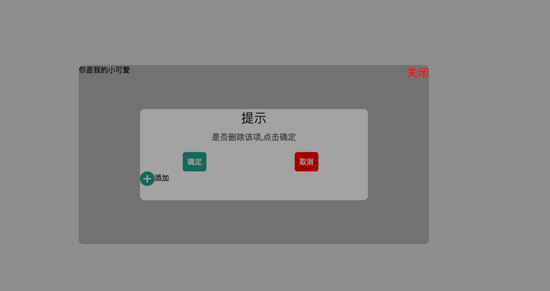
详细请看代码:
    关于position的定位的坑


    body{
 margin: 0;
 padding: 0;
    }
    i{
 font-style: normal;
 cursor: pointer;
    }
    #delete-button{
 position: absolute;
 left: 45%;
 top: 45%;
 text-align: center;
 vertical-align: middle;
 height: 50px;
 margin: auto;
 cursor: pointer;
    }
    #delete-button > i{
 display: inline-block;
 width: 32px;
 height: 32px;
 border-radius: 16px;
 background-color: orange;
 color: red;
 font-size: 32px;
 vertical-align: middle;
 line-height: 28px;
    }

    #layout{
 display: none;
 width: 100%;
 height: 100%;
    }

    #layout-box{
 position: fixed;
 width: 100%;
 height: 100%;
 left: 0;
 top: 0;
 display: flex;
 display: -webkit-flex;
 flex-flow: column nowrap;
 justify-content: center;
 align-items: center;
 background-color: rgba(0,0,0,0.3);
    }

    .modal-dialog{
 width: 500px;
 height: 200px;
 border-radius: 10px;
 background-color: #fff;
    }
    .dialog-title{
 text-align: center;
 color: #333;
 font-size: 28px;
 margin-bottom: 10px;
    }
    .dialog-content{
 text-align: center;
 color: #666;
 font-size: 18px;
    }
    .dialog-button{
 margin-top: 20px;
 width: 100%;
 color: #333;
    }
    .dialog-button >.button-box{
 display: inline-block;
 width: 48%;
 text-align: center;
    }
    .button-box span{
 display: inline-block;
 padding: 10px;
 color: #fff;
 border-radius: 6px;
 cursor: pointer;
    }
    #/confirm/i{
 background-color: #27ad9a;
    }
    #cancel{
 background-color: red;
    }

    #add-button > i{
 display: inline-block;
 width: 32px;
 height: 32px;
 border-radius: 16px;
 background-color: #27ad9a;
 color: #fff;
 font-size: 32px;
 vertical-align: middle;
 line-height: 28px;
 text-align: center;
    }
    #add-button{
 display: inline-block;
 cursor: pointer;
    }

    .layout2{
 display: none;
 position: fixed;
 width: 100%;
 height: 100%;
 left: 0;
 top: 0;
 background-color: rgba(0,0,0,0.2);
    }
    .modal-dialog2{
 position: fixed;
 left: 50%;
 top: 50%;
 width: 50%;
 height: 50%;
 border-radius: 10px;
 transform: translate(-50%, -50%);
 -webkit-transform: translate(-50%, -50%);
 -moz-transform: translate(-50%, -50%);
 -o-transform: translate(-50%, -50%);
 background-color: rgba(0,0,0,0.2);
    }
    .modal-dialog2 > span{
 display: block;
    }
    .modal-text{
 float: left;
    }
    #close{
 color: red;
 font-size: 24px;
 float: right;
 cursor: pointer;
    }


    -删除


  提示
  是否删除该项,点击确定


   确定


   取消


  +添加


   你是我的小可爱
   关闭
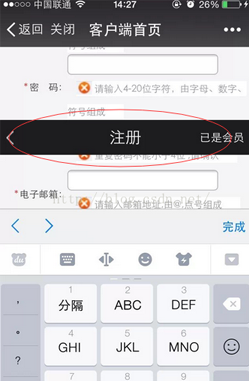
第二:解决在手机上的抖动问题(ps:这个问题我参照了网上大神写的一篇博客请移至文末查看)
**一、**在webkit内核浏览器中 给fixed加上防抖样式 - webkit - transform: translateZ(0);
**二、**设置html 和body 的css {height:100%;overflow:auto;margin:0;} 这个影响全局样式不建议使用。
三、在fiexd内设置position:absolute,如下:
4、百分比布局 主要通过设置元素的宽度为百分比或者高度为百分比。比如:width:50%; height:50%; 这样的写法。
5、响应式布局(主要使用媒体查询来实现响应式设计) 主要使用CSS3 @media 来做不同终端的响应式设计
主要在css文件中写入
@media screen and (max-width:600px){
    写入当屏幕小于或等于600px时的样式
}
@media screen and (min-width:900px){
    写入当屏幕大于或等于900px时的样式
}
@media screen and (min-width:600px) and (max-width:900px){
    写入当屏幕在600px-900px之间的样式
}
@media screen and (max-device-width: 480px){
    写入最大设备宽度为480px,比如说iPhone上的显示,这里的max-device-width所指的是设备的实际分辨率,也就是指可视面积分辨率
}
@media only screen and (-webkit-min-device-pixel-ratio: 2){
    写入专门针对iPhone4的移动设备样式
}
@media all and (orientation:portrait){
    写入设备在纵向时的样式
}
@media all and (orientation:landscape){
    写入设备在横向时的样式
}
@media not print and (max-width: 1200px){
    not是用来排除某种制定的媒体类型
    写入在除打印设备和设备宽度小于1200px下的所有设备的样式
}
@media only screen and (max-device-width:240px){
    only用来定某种特定的媒体类型,可以用来排除不支持媒体查询的浏览器。
    写入只能在最大设备宽度为240px的屏幕下使用的样式
}
以上就是本文的全部内容,希望对大家的学习有所帮助,也希望大家多多支持考高分网。



