


1.安装win10内置linux子系统
1.1.安装linux子系统
1.1.1.升级或者重装linux系统
1.系统要求
需要升级win10到一周年纪念版,或者 重装系统
2.重装系统
笔者结果测试发现下面的系统重装后可以启用linux子系统
cn_windows_10_enterprise_version_1607_updated_jul_2016_x64_dvd_9057083.iso
cn_windows_10_multi-edition_vl_version_1709_updated_sept_2017_x64_dvd_100090774.iso
1.1.2.启用linux子系统
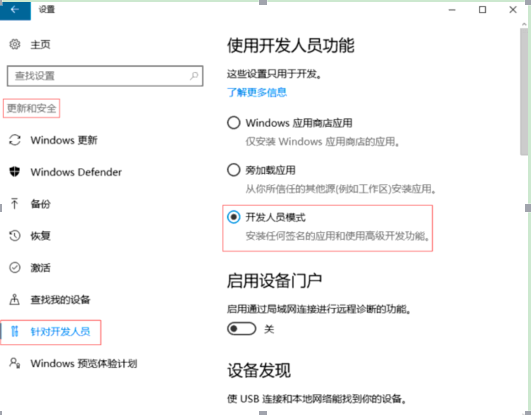
step1.启用开发人员模式
(16215版之后不再需要开发人员模式)
设置-->更新和安全-->针对开发人员
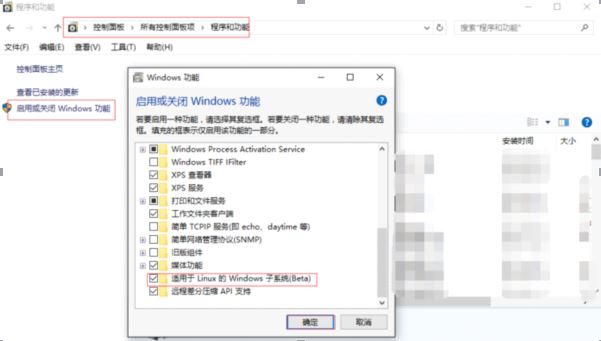
step2.启用linux子系统
控制面板-->程序和功能-->启用或关闭windows功能
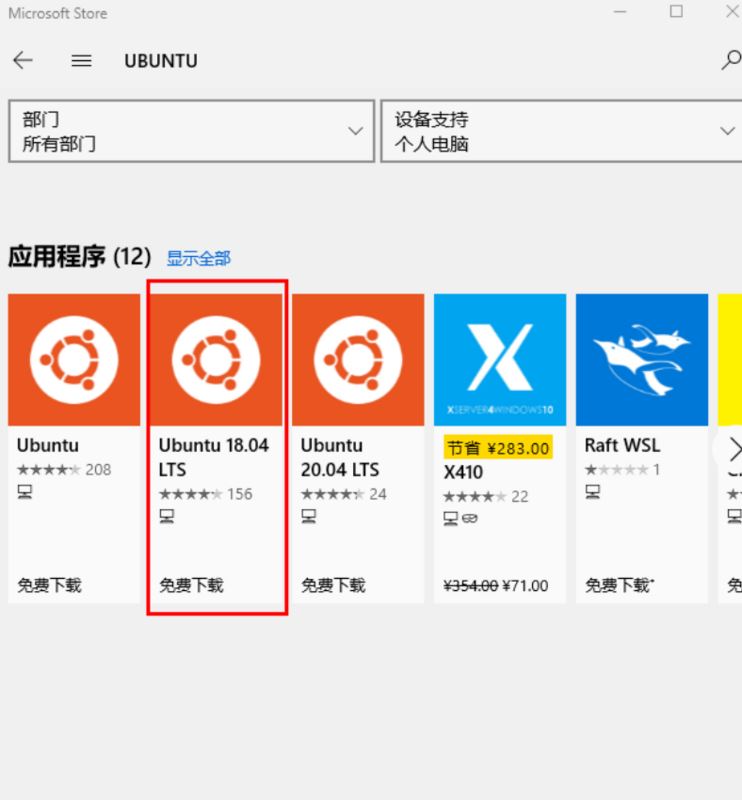
1.1.3.在线安装ubuntu系统
打开Microsoft Store安装ubuntu系统
1.1.4.离线安装ubuntu系统
下载安装包,下载自己想要安装的Linux系统。
参考链接:https://docs.microsoft.com/en...
下载Ubuntu 16.04.
Invoke-WebRequest -Uri https://aka.ms/wsl-ubuntu-1604 -OutFile Ubuntu.appx -UseBasicParsing
也可以使用curl下载,但是需要先安装curl
curl.exe -L -o ubuntu-1604.appx https://aka.ms/wsl-ubuntu-1604
安装
Add-AppxPackage .app_name.appx
1.1.5.启动ubuntu系统
启动ubuntu系统
安装完成后打开搜索菜单,输入系统名字搜索启动
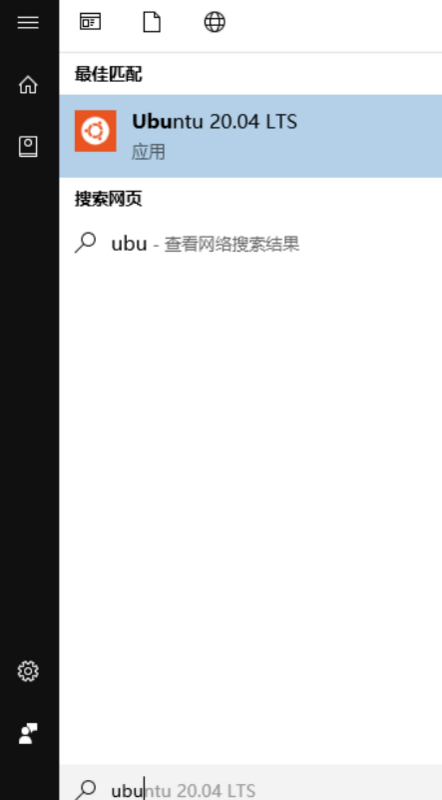
输出需要设置的用户和密码
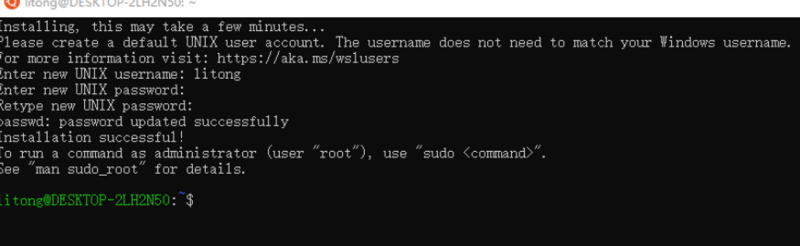
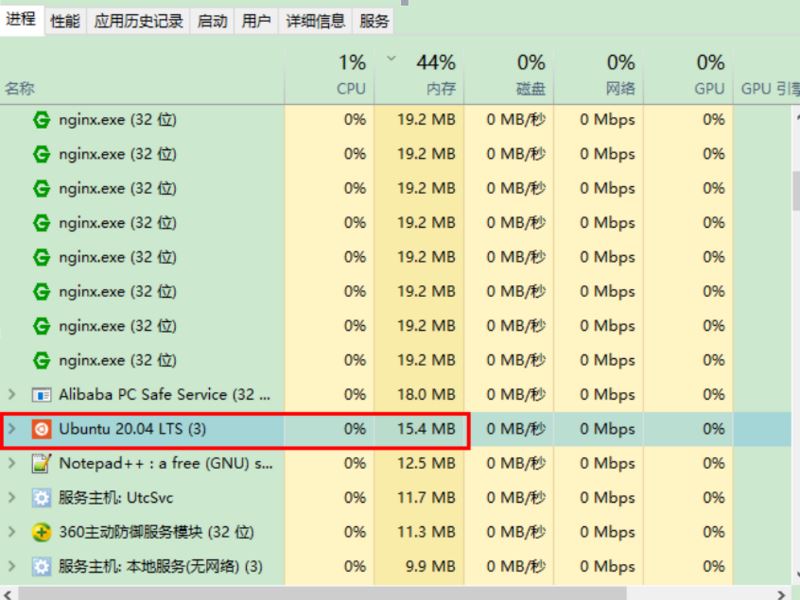
你相信吗,仅仅只有15.4MB
安装目录
C:UsersAdministratorAppDataLocalPackagesCanonicalGroupLimited.Ubuntu20.04onWindows_79rhkp1fndgsc
home目录
C:UsersAdministratorAppDataLocalPackagesCanonicalGroupLimited.Ubuntu20.04onWindows_79rhkp1fndgscLocalStaterootfshome
1.2.开启ssh-server
1.2.1.相互复制文件
ubuntu的bash窗口窗与在xshell不同,通过shift+v无法黏贴,并且在输入界面鼠标右键无法使用。粘贴文件的方法如下
右击标题栏==> Edit(编辑) ==> Mark/Paste(标记并复制/粘贴)操作
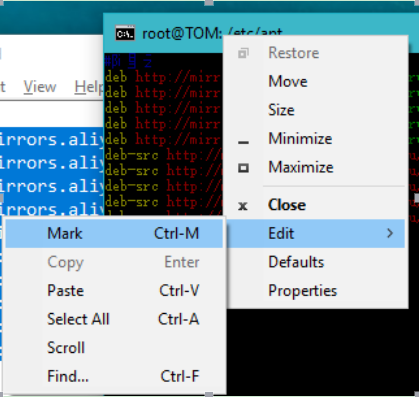
这样还是很麻烦,可以调整对话框,在弹出的菜单中有一个Properties对话框属性菜单,点击进入下图
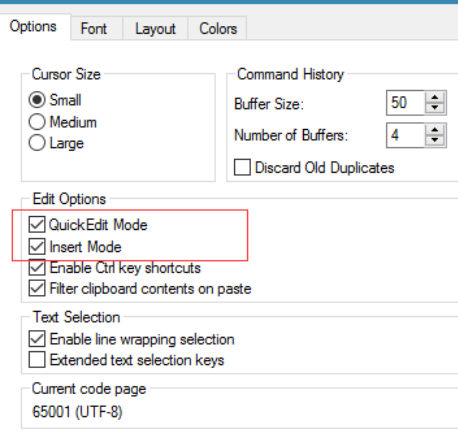
勾选快速编辑、快速插入模式,这两种模式支持鼠标右键选中,左键黏贴操作。
最后,最好的方式是,在ubuntu上启动ssh服务,通过xshell连接上操作会更好。
1.2.2.修改apt源
参考链接
https://developer.aliyun.com/...
用你熟悉的编辑器打开:
/etc/apt/sources.list
替换默认的archive.ubuntu.com为mirrors.aliyun.com
修改后的内容
ubuntu18.04
deb http://mirrors.aliyun.com/ubuntu/ bionic main restricted universe multiverse
deb-src http://mirrors.aliyun.com/ubuntu/ bionic main restricted universe multiversedeb http://mirrors.aliyun.com/ubuntu/ bionic-security main restricted universe multiverse
deb-src http://mirrors.aliyun.com/ubuntu/ bionic-security main restricted universe multiversedeb http://mirrors.aliyun.com/ubuntu/ bionic-updates main restricted universe multiverse
deb-src http://mirrors.aliyun.com/ubuntu/ bionic-updates main restricted universe multiversedeb http://mirrors.aliyun.com/ubuntu/ bionic-proposed main restricted universe multiverse
deb-src http://mirrors.aliyun.com/ubuntu/ bionic-proposed main restricted universe multiversedeb http://mirrors.aliyun.com/ubuntu/ bionic-backports main restricted universe multiverse
deb-src http://mirrors.aliyun.com/ubuntu/ bionic-backports main restricted universe multiverse
ubuntu 20.04(focal)
deb http://mirrors.aliyun.com/ubuntu/ focal main restricted universe multiverse
deb-src http://mirrors.aliyun.com/ubuntu/ focal main restricted universe multiversedeb http://mirrors.aliyun.com/ubuntu/ focal-security main restricted universe multiverse
deb-src http://mirrors.aliyun.com/ubuntu/ focal-security main restricted universe multiversedeb http://mirrors.aliyun.com/ubuntu/ focal-updates main restricted universe multiverse
deb-src http://mirrors.aliyun.com/ubuntu/ focal-updates main restricted universe multiversedeb http://mirrors.aliyun.com/ubuntu/ focal-proposed main restricted universe multiverse
deb-src http://mirrors.aliyun.com/ubuntu/ focal-proposed main restricted universe multiversedeb http://mirrors.aliyun.com/ubuntu/ focal-backports main restricted universe multiverse
deb-src http://mirrors.aliyun.com/ubuntu/ focal-backports main restricted universe multiverse
更新
apt-get update
1.2.3.启用ssh
1.安装ssh
apt-get -y install openssh-server
2.修改配置文件,一般不需要修改
cp /etc/ssh/sshd_config /etc/ssh/sshd_config.bak
vi /etc/ssh/sshd_config
# 修改端口号,避免和 Windows ssh 服务端口冲突
Port 2222
#StrictModes yes # 注释
# 使用密码登录
PasswordAuthentication yes
# 允许使用 root 用户登录
PermitRootLogin yes
3.设置root账号密码
sudo -s
passwd root
4.启动ssh
service ssh start
5.如果提示“sshd error: could not load host key”,则用下面的命令重新生成
rm /etc/ssh/ssh*key
dpkg-reconfigure openssh-server
使用xshell连接127.0.0.1输入账号和密码即可
1.2.4.配置PS1变量
自行百度什么事linux的PS1变量
export PS1="[e[1;32;40m][u@h W]\$ [e[m]"
2.搭建开发环境
2.1.搭建java开发环境
2.1.1.安装java和maven
mkdir /usr/java
tar -xf jdk-8u211-linux-x64.tar.gz -C /usr/java/
mdkir /usr/maven
tar -xf litongjava-apache-maven-3.3.9.tar.gz -C /usr/maven/
配置环境变量
export JAVA_HOME=/usr/java/jdk1.8.0_211
export M2_HOME=/usr/maven/apache-maven-3.3.9
export PATH=$JAVA_HOME/bin:$M2_HOME/bin:$PATH
配置maven使用windows的maven本地库目录,maven本地库在linux中对应的目录是/mnt/d/dev_mavenRepository/
settings.xml的内容如下
cat /usr/maven/apache-maven-3.3.9/conf/settings.xml/mnt/d/dev_mavenRepository/ aliyun aliyun * https://maven.aliyun.com/repository/public
2.1.2.打包和启动spring-boot项目
进行项目目录执行下面的命令打包项目
mvn clean package -DskipTests
进入target目录启动项目
cd target/
java -jar *.jar
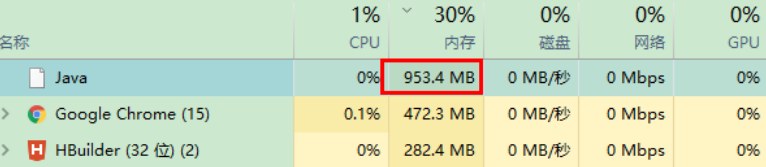
可以明显的看出,java程序使用了近1G的内存
总结
到此这篇关于如何使用win10内置的linux系统启动spring-boot项目的文章就介绍到这了,更多相关win10 linux启动spring-boot项目内容请搜索考高分网以前的文章或继续浏览下面的相关文章希望大家以后多多支持考高分网!



